 Kiln
Kiln DocumentationTools
Editor and search
Open and edit files with syntax highlighting, language detection, language-server completion and a file explorer that shows ignored files.
Kiln includes a file editor next to your terminals, with syntax highlighting, completion from language servers and a file explorer. Open files, search and problems from the same workspace without leaving your task.
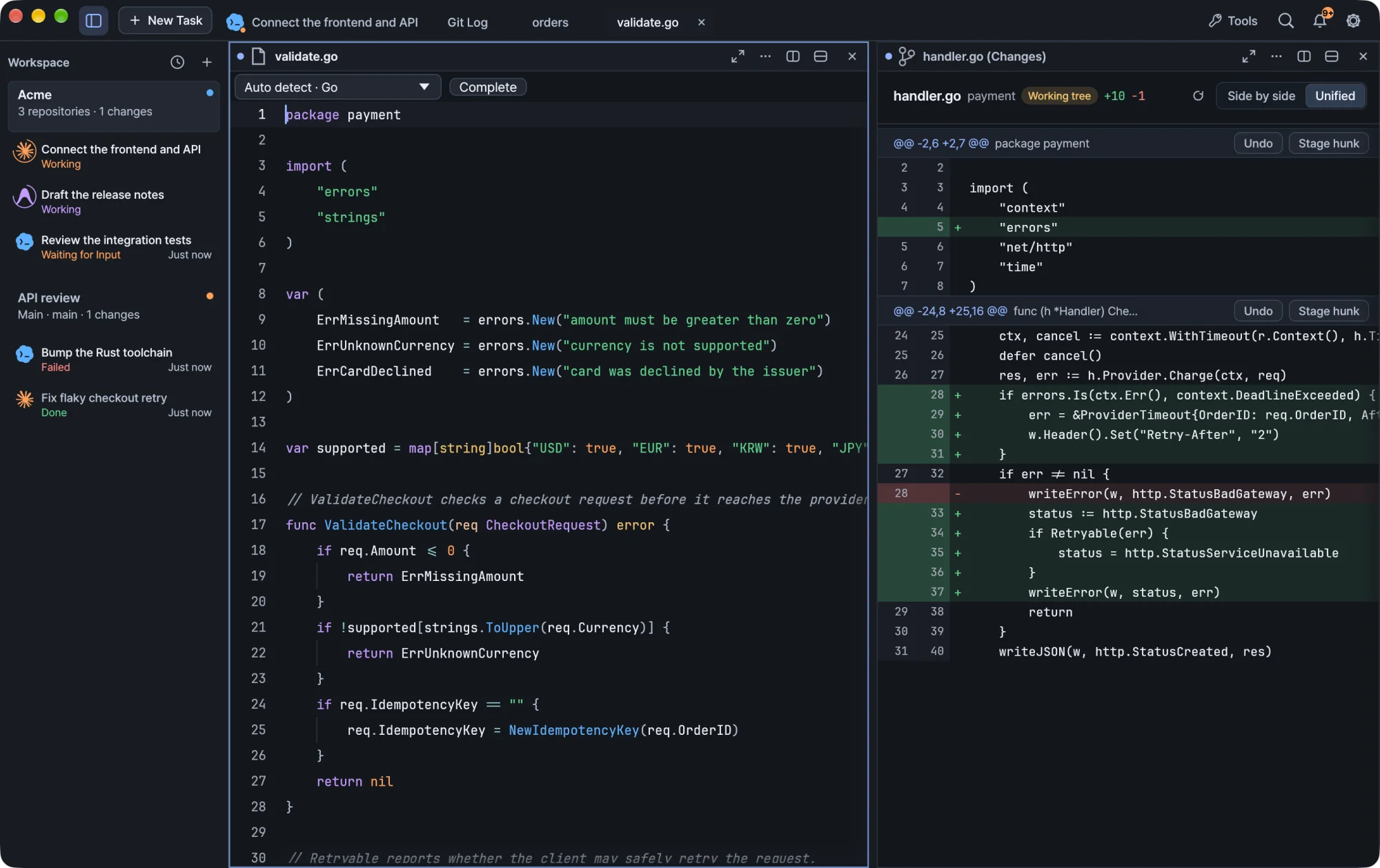
Open the editor and tools
The workspace inspector includes Files, which opens the file explorer. The titlebar Tools menu lists files, search, source control, GitHub, databases, remote connections and problems together. Choosing one opens it alongside your current work. In compact windows, Back to Task returns you to the terminal.
File explorer
The explorer shows Git-ignored files and folders by default, including .env, .env.prod, logs and generated directories. You can open them like any other file, by clicking or with keyboard navigation.
- Ignored entries have muted names and icons and a small Ignored badge.
- Hover an ignored entry to see which rule excludes it.
- Folders load only when you expand them.
- Choose Hide ignored files to filter them out of the view.
Showing or hiding ignored files does not change Git tracking or your repository's ignore rules. Internal .git and .DS_Store metadata always stays hidden.
Language detection
The editor highlights files with bundled grammars. It picks a language from the filename and extension first, then from a shebang or a recognizable content signature such as a JSON document, XML, an HTML doctype or a PHP header. It does not guess a language from ordinary prose.
To override detection, use the language selector above the document. Choose a language, including Plain Text, or return to Auto detect.
- Your choice is kept across restarts, for both saved files and files with unsaved changes.
- Editing a script's shebang, or reloading a file changed outside Kiln, updates detection.
- The selected language controls highlighting, comment commands, and the language sent to a configured language server.
Completion
Completion suggestions appear when you type an identifier prefix. You can also open the list yourself.
| Action | How |
|---|---|
| Open suggestions | ⌃Space, ⌥Esc, or click Complete |
| Choose a candidate | Arrow keys |
| Insert | Enter or Tab |
| Close the list | Esc |
| See a full name and details | Hover a truncated entry |
While you compose text with an input method (IME), the IME keeps its own input and candidate keys. Kiln's completion does not take them over.
When you accept a suggestion, Kiln applies the server's full replacement and any additional edits as one undo step. A suggestion that arrives after you have moved the caret or changed the document is discarded.
Language servers
Installed language servers provide semantic suggestions. Kiln has defaults for these languages:
| Language | Language server |
|---|---|
| Rust | rust-analyzer |
| Go | gopls |
| JavaScript and TypeScript | typescript-language-server |
| Python | pyright-langserver or pylsp |
| C and C++ | clangd |
| Lua | lua-language-server |
Install the server for your language, and Kiln uses it. To change languages, file extensions, commands or arguments, edit the lsp.json configuration.
Language servers start with your normal PATH plus supported install locations and the server's own folder, so servers launched through an interpreter can run. In a project with nested sub-projects, each file uses the nearest recognized project marker. This does not change the working directory of your terminal or workspace.
Without a language server
When no language server is connected, Kiln still offers local suggestions, labeled Language suggestion or Document word.
- Common keywords, literals and built-in names are bundled per language. JavaScript and TypeScript have separate lists.
- Other grammars suggest matching words from the open document.
- Local suggestions are not semantic. They do not resolve imports, types or symbols from other files.
- Scanning is limited so large documents stay responsive. Binary and large-file modes do not offer completion.
Search and problems
Project search and the problems list are in the titlebar Tools menu, next to files and source control. Either one opens beside your current work, so your terminal task stays in place.
Remote files
Files on S3, OCI, GCS, R2, FTP and SFTP open in this same editor. See Remote files and SSH.
Windows
The editor works the same on Windows. Korean IME composition and commit work in the editor as they do in terminals.