 Kiln
Kiln DocumentationUsing Kiln
Run Claude Code, Codex and Antigravity
Start Claude Code, Codex and Antigravity tasks from a workspace, follow their state, and let Kiln retry Codex turns when the server is overloaded.
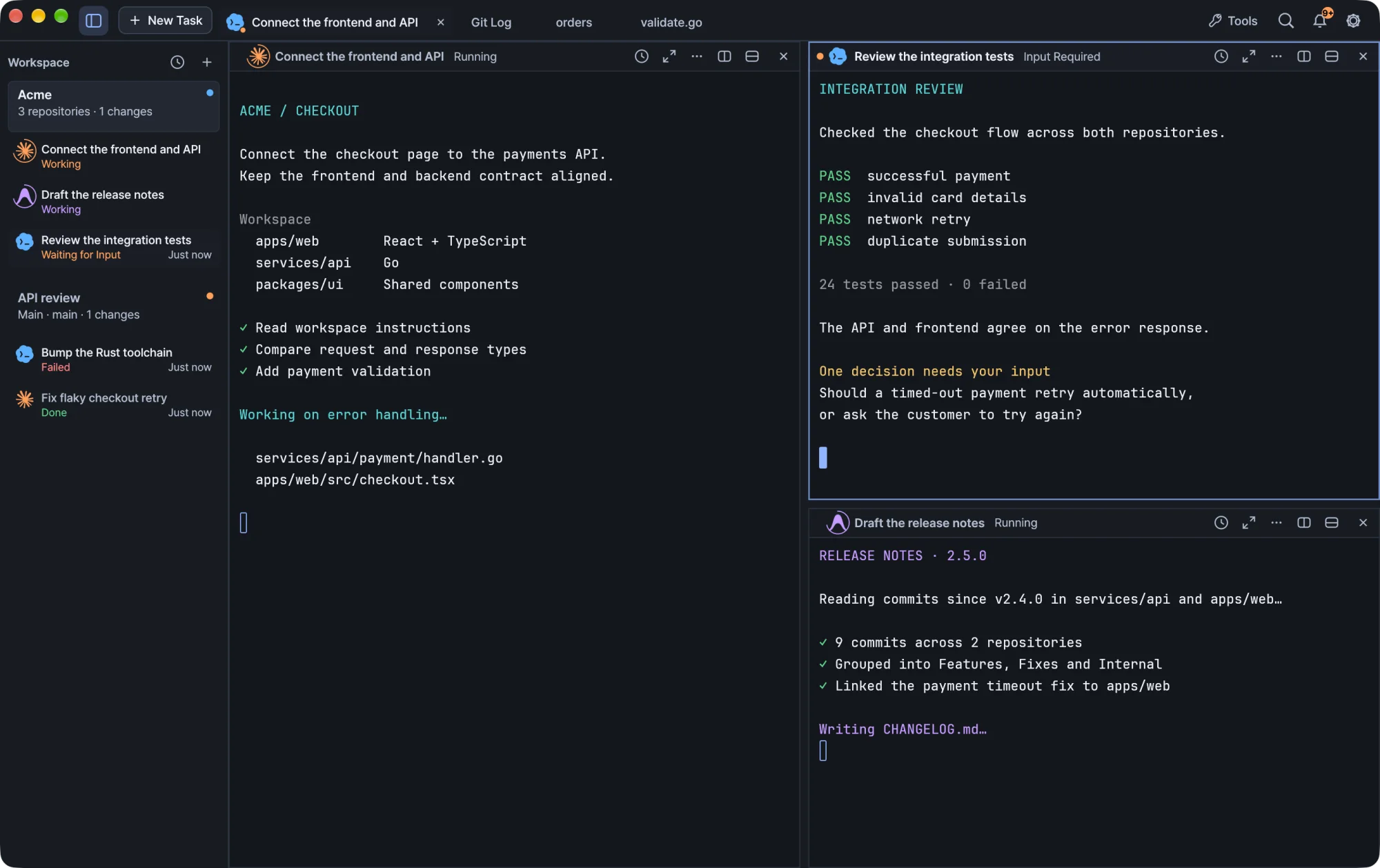
Kiln runs Claude Code, Codex and Google's Antigravity CLI (agy) inside workspace panels. You write a request, pick an agent, and follow every task's state from the sidebar without hunting through terminals.
Before you start
The agents are external tools. Install the official CLI for each agent you use and sign in to it. Kiln does not include a subscription to any of them.
- Claude Code and Codex: install the CLI, then add your accounts in Settings → Accounts. See Accounts.
- Antigravity: install
agywith Google's installer. On macOS, sign in from Settings → Accounts → Antigravity. On Windows, sign in by runningagyin a terminal. Kiln looks foragyin yourPATH,~/.local/bin,/opt/homebrew/binand/usr/local/bin.
On Windows, Claude Code and Codex run as native Windows programs with their homes in %USERPROFILE%\.codex and %USERPROFILE%\.claude.
Start a task
Choose New Task, enter a request, pick an agent and start. The agent selector (Claude Code, Codex or Antigravity) stays directly below the request input. Repository context scrolls separately, so a long summary never pushes the start action out of reach.
For Antigravity you can also use:
| Action | What it does |
|---|---|
| New task → Antigravity | Starts agy in the current workspace. |
| New task → Open in folder → Antigravity | Asks for a folder first, then starts agy there. |
New Antigravity task (command palette, ⌘K) |
Starts an Antigravity task. |
When you choose Antigravity below a request, Kiln passes the request and the repository summary to agy as its initial prompt. The antigravity command opens the Antigravity editor, so Kiln does not treat it as an agent.
Unsent requests are saved with the workspace and restored when Kiln reopens. Closing a workspace asks before discarding them.
Work across several repositories
Open a parent folder, such as ~/dev/projects, when your frontend, backend and shared libraries live in separate Git repositories. Kiln keeps that folder as the agent's working root and can include the discovered repository layout with your request, so one request can cover all of them.
Inspecting a repository in the Git or GitHub tools does not change the task's working directory. Use the repository selector in those tools to target one repository for Git operations. See Workspaces and tasks and Git and GitHub.
Follow task state
Each task row in the sidebar shows the state its agent reports.
| State | Meaning |
|---|---|
| Working | The agent is working. |
| Waiting for Input | The agent needs your input. |
| Done | The agent finished. |
| Failed | The agent reported a failure. |
| Session Open | No state was reported. Kiln shows the session as open instead of guessing. |
Running work appears first, followed by requests waiting for input and then older failures. Click a task to jump to its workspace, tab and split, including a pane hidden by zoom.
How Kiln knows the state
An agent must report its state, or show a running title Kiln recognizes, for Kiln to display it accurately.
- Kiln recognizes the activity markers in Claude Code and Codex terminal titles, so running activity shows without extra setup.
- Claude Code's
✳marker is not treated as completion, because it also appears while a dialog is open. - Explicit waiting and failure signals take priority over title markers.
- An idle terminal is never treated as a completed task, and an unfinished launch command does not mark an idle agent as running.
Scripts and other tools can report state with kiln activity running, waiting, done or failed. See Terminal for activity reporting and notifications.
Indicator colors
| Agent | Indicator |
|---|---|
| Claude Code | Orange |
| Codex | Blue |
| Antigravity | Antigravity mark in the tab, task list and sidebar |
| Unidentified session | Neutral |
Indicators appear in the sidebar, the tab and the panel header. In a split tab, the focused pane wins when states have equal priority. Warnings always take priority.
Notifications and usage limits
The notification center keeps recent notifications and links each one to its session. Reading a notification clears that session's attention state. On Windows, agent notifications appear as Windows toasts.
When Antigravity reports that its quota is reached, Kiln shows a usage-limit notification with the reset time. For Claude Code and Codex, a panel keeps the account it was opened with. When an account reaches its usage limit, switch to another account in Settings → Accounts and open a new panel. See Accounts.
Codex capacity recovery
While Kiln is open, managed Codex panels retry a turn that Codex ended because its server was overloaded. Only that specific Codex error starts a retry. Usage limits, sign-in failures, stream errors, cancelled turns and successful turns are left alone.
- Retries wait 15, 30, 60, 120 and 240 seconds. The panel shows a countdown and a Cancel auto-retry button.
- Typing in the panel after the failure cancels the pending retry, including a partly typed prompt.
- A new request you submit yourself starts a fresh set of retries.
- Retries keep the same account and model.
If the Codex CLI is still open, Kiln sends one continuation prompt in the same conversation. If the CLI has exited, Kiln resumes the same conversation with its original account and working directory, then sends the prompt. The prompt asks Codex to check the current state before repeating a completed action. It does not replay your original request, and changes made during the failed turn are not rolled back.
Retries apply to Codex panels opened with a saved account whose conversation Kiln has confirmed. Failures from before Kiln started watching a running CLI are left for you to handle.
Codex background-server settings
New Codex panels opened by Kiln run with --no-daemon, independent of Codex's own shared background server. If a Codex session reports Background server has incompatible feature settings, the session's feature flags differ from the ones that server saved. You can choose:
| Option | Effect |
|---|---|
| Run without daemon this time | Starts this session without restarting the shared Codex server. The CLI equivalent is codex --no-daemon. |
| Restart with these settings | Changes the shared settings. This can interrupt other clients' active or queued work, so check them first. |
Next steps
- Accounts: sign in, switch accounts and watch usage.
- Conversations and updates: continue a conversation in another CLI and restart after updates.