 Kiln
Kiln DocumentationUsing Kiln
Workspaces and tasks
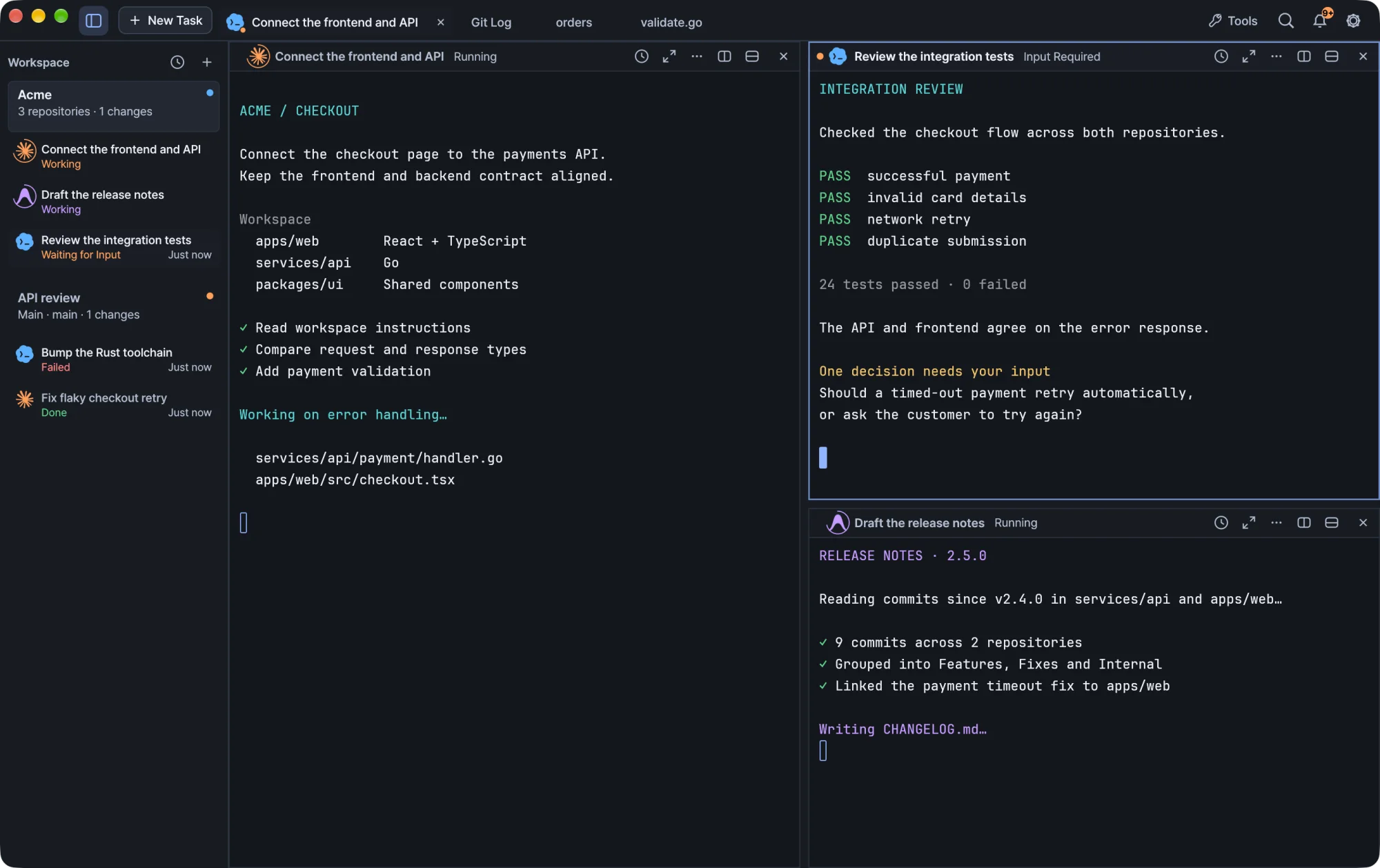
Create named workspaces for a folder, work across several repositories, follow tasks in the sidebar and arrange terminal splits.
A workspace is a named view of a folder with its own tasks, terminals, splits and drafts. Create several for the same folder when different pieces of work need their own terminals and layouts.
Create a workspace
- Choose + in the workspace sidebar, or press
⌘N. - Enter a name and choose a folder.
The same dialog lists the workspaces that already exist for the selected folder, so you can open one of those instead of creating another. Cancelling the dialog does not start a terminal.
Several workspaces, one folder
One folder can have as many workspaces as you need, for example API review and Documentation. Each workspace keeps its own:
- tasks and terminal sessions,
- split layout,
- unsent requests (drafts).
Kiln restores each workspace independently when it reopens. Files and Git history belong to the folder, so every workspace for that folder sees the same files and the same history.
One workspace, several repositories
When your frontend, backend and shared libraries live in separate Git repositories, open their parent folder, such as ~/dev/projects, as the workspace folder.
- Agents work from the parent folder. Kiln keeps that folder as the agent's working root and can include the discovered repository layout with your request. Inspecting a repository does not change the task's working directory.
- Git targets one repository. Use the repository selector inside the Git and GitHub tools to choose which repository an operation applies to. See Git and GitHub.
A workspace is a boundary for navigation and agent context. Each repository keeps its own Git history.
The task list
The sidebar shows the tasks of each workspace and the state each one reports: Working, Waiting for Input, Done or Failed.
- The sidebar previews up to three tasks per workspace, with an option to show all.
- Running work comes first, followed by requests awaiting your input and then older failures.
- Recent work uses the same activity state and keeps its order stable while you have it open.
- Linked worktrees are distinguished from the main repository's workspace.
Click a task to reveal its workspace, tab and split, including a pane hidden by zoom.
How states are reported
Kiln shows a state only when it is reported. An agent has to report its state, or show a running title Kiln recognizes, before Kiln marks it as running. Shell-integrated commands can report their own running state.
Sessions that report nothing appear as open sessions. An idle terminal is not treated as a completed task, and an agent launch command that has not finished does not mark an idle agent as running. See Agents for agent states and indicators, and Terminal for reporting activity from your own scripts.
Start a task
Choose New Task, enter a request, pick Claude Code, Codex or Antigravity, and start. The agent picker stays directly below the request input. Repository context scrolls separately, so it never pushes the start action out of reach.
The agent's CLI must already be installed and signed in. See Install and update and Agents.
Splits and pane layout
Each panel header has controls to split right, split down and close the panel. When a split is very narrow, these actions move into the panel menu so their click targets do not overlap.
Move a pane
Drag a pane's title to the left, right, top or bottom edge of another pane. A highlight shows where it will land in the resulting layout. Moving a pane keeps its terminal session and running process; Kiln does not open a replacement shell.
Resize panes
Drag a divider to resize the panes on either side.
| Where you drag | What moves |
|---|---|
| Away from an aligned intersection | Only that segment of the divider. |
| Near an aligned intersection | The connected segments, highlighted together, move as one boundary. |
| At the intersection itself | Your first horizontal or vertical movement chooses the axis. |
The selected range stays fixed for the rest of that drag.
Dividers snap to halves, thirds and quarters of the whole terminal area, and to the positions of adjacent dividers. A captured line becomes brighter and thicker and stays attached through a short release margin.
Tip Hold
⌥while dragging to bypass snapping and linked movement. PressEscto cancel the drag and restore the layout from before it started.
Highlights appear only while you drag. A destination that is blocked cannot change the layout.
Switch workspaces and tasks
Use the sidebar to move between workspaces and tasks. Switching workspaces keeps every running process alive.
Close panels, workspaces and the window
- Closing a workspace ends only that workspace's sessions. Kiln still asks before it discards drafts.
- Closing a running process asks for confirmation. Select Don’t ask again to turn off process-termination prompts for panels, tabs and workspaces. The choice is saved only after you confirm the close, and you can turn the prompts back on in Settings → Behavior. Warnings about unsaved content and launch requests stay on.
- Closing the window asks about unsaved files and drafts, and waits for running transfers, database writes and worktree creation. Your terminals keep running in the background. See Terminal.
Keyboard shortcuts
| macOS | Action |
|---|---|
⌘N |
New workspace |
⌘K |
Commands and navigation |
⌘J |
Recent work |
⌘B |
Show or hide the workspace sidebar |
⌘, |
Settings |
Ctrl + ` |
Quick terminal |
You can customize navigation shortcuts in Settings.
On Windows, app shortcuts shown with ⌘ use Ctrl+Shift, ⇧⌘ uses Ctrl+Shift+Alt and ⌥⌘ uses Ctrl+Alt.