 Kiln
Kiln DocumentationTools
Remote files and SSH
Browse and edit files on Amazon S3, Google Cloud Storage, OCI Object Storage, Cloudflare R2, FTP/FTPS and SFTP, and open SSH terminals from your SSH config.
Kiln browses object storage, FTP servers and SFTP hosts in the workspace inspector, next to your terminals, databases and local files. Remote files open in the same editor as local ones, and SSH hosts from your OpenSSH config are ready to pick.
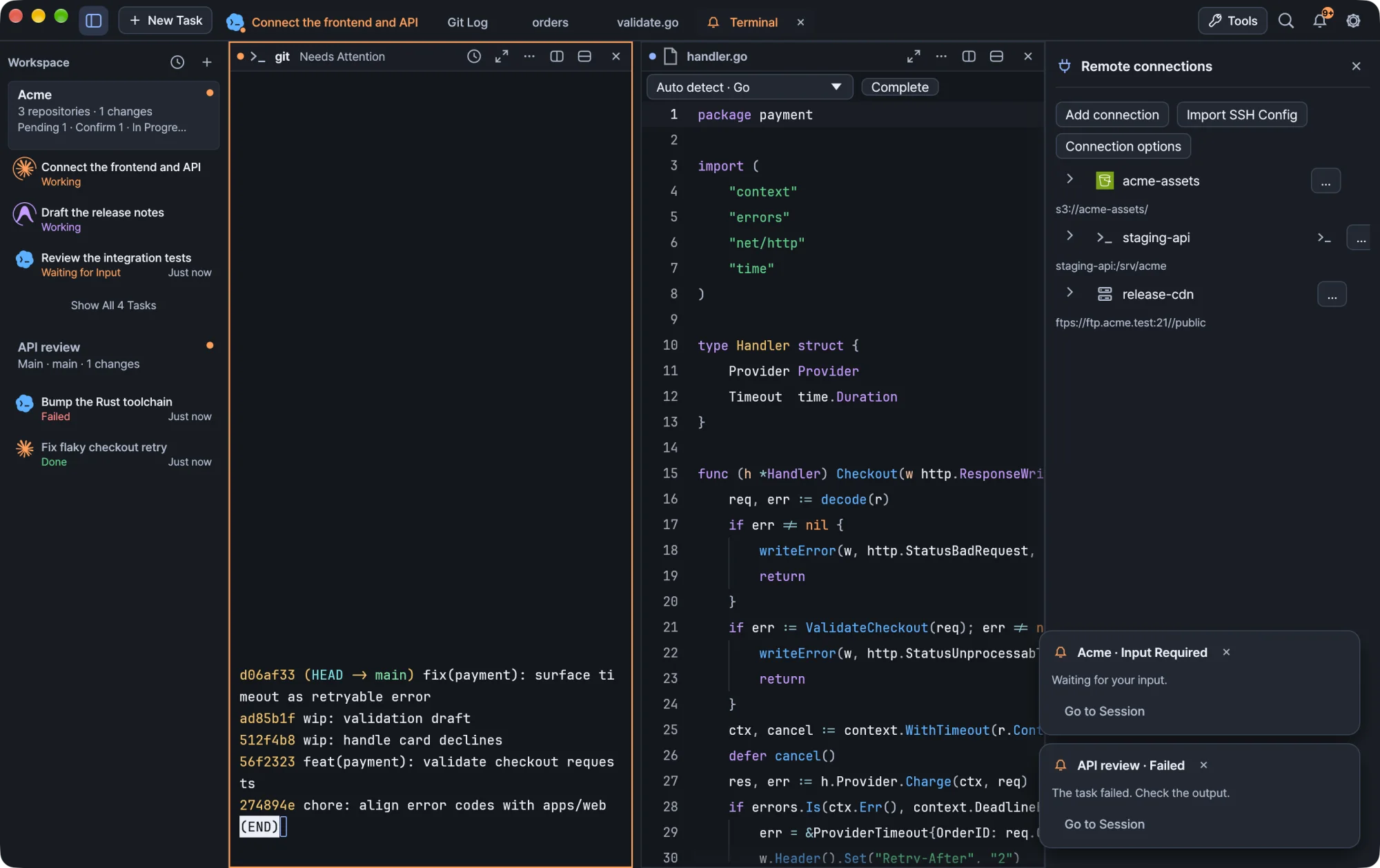
Add a connection
Choose Tools → Remote connections in the titlebar, then add a named connection. The tool opens alongside your terminal task without replacing it.
| Type | What you provide |
|---|---|
| Amazon S3, Google Cloud Storage, OCI Object Storage, Cloudflare R2 | Authentication, then a bucket |
| FTP / FTPS | Host, port and username |
| SFTP / SSH | A host from SSH Config host, or Enter manually |
Saved connection settings contain names and addresses. Passwords and keys go to Kiln's credential store (the macOS Keychain on a Mac). See Credentials.
Object storage
Choose authentication first, then the bucket. Once authentication and any required scope are ready, Kiln loads the list of buckets in the background. If there is only one, it is selected for you.
| Provider | Authentication and scope |
|---|---|
| AWS S3 | Saved AWS profile, Default AWS authentication, or Enter keys manually. Listing buckets needs permission to list the account's buckets. |
| Google Cloud Storage | Native authentication lists the project you specify. The selected CLI configuration's project is filled in when available. |
| OCI Object Storage | Native authentication needs a compartment OCID. The profile's region and namespace settings stay in effect. |
| Cloudflare R2 | Native authentication uses the account you specify. The list covers the default jurisdiction. |
| S3-compatible | Uses that service's bucket-list API. What you see depends on the service and your credentials. |
If your credentials can reach a known bucket but cannot list buckets, use Enter manually for that bucket. A successful bucket list does not prove you can write to it.
Kiln never creates buckets, signs you in or changes your cloud credentials while it looks them up.
AWS profiles
With Saved AWS profile, Kiln reads profiles from ~/.aws/config and ~/.aws/credentials, and follows AWS_CONFIG_FILE and AWS_SHARED_CREDENTIALS_FILE if you set them. Kiln saves the profile name, not a copy of its keys, and never modifies your AWS files. A profile's region fills the region field until you edit it.
For profiles that use SSO, roles or credential_process, install AWS CLI v2 and complete the profile's usual AWS login first. Kiln resolves the credentials through the CLI when it connects. If the selected profile is unavailable or expired, you get an error. Kiln does not fall back to another account.
Endpoint, starting prefix and path-style addressing are under Advanced connection settings.
Reusable authentication
To use the same identity for several buckets, expand Save as authentication profile, give it a name and save. No bucket is needed. Select the profile again later, rename it by saving under a new name, or delete it.
Each saved bucket connection keeps its own copy of the secret it needs, so renaming or deleting a reusable profile does not break existing connections.
FTP and FTPS
Enter the host, port and username. FTPS uses explicit TLS and validates the server certificate.
Warning Plain FTP sends everything unencrypted, including your password. Use it only when your server requires it.
SFTP and SSH hosts
Pick a host from the SSH Config host dropdown. Kiln reads ~/.ssh/config and its static Include files, and fills in the host, username, port and key path. To use another config file, choose it under Advanced connection settings. To connect by hostname or IP address without an SSH alias, choose Enter manually.
Kiln only reads your SSH config. It runs no SSH commands, Match exec, authentication or network connections, so conditional settings are resolved by OpenSSH when you connect.
- A selected host keeps its alias, jump hosts and other OpenSSH settings.
- Fields you leave untouched follow your config at connection time.
- Fields you edit become overrides, shared by SFTP and Open SSH terminal. Clear an override to follow the config again.
- A key path adds an identity for OpenSSH. It does not restrict the connection to that key.
SSH terminals and host keys
Open SSH terminal opens a terminal to the same host, using the same overrides as SFTP. The SFTP browser uses OpenSSH key or agent authentication and needs a known host key. Kiln never turns off host-key verification.
For a new server:
- Open its SSH terminal.
- Check and accept the server fingerprint through OpenSSH.
- Reconnect the file browser.
Password-only hosts work in the SSH terminal. The SFTP browser needs key or agent authentication that runs without prompts.
Browse and edit
Select a saved connection to browse it in the inspector. The connection shows its bucket or host and the current path.
- Double-click a folder to enter it, and use the up arrow to go back. The up control is disabled at the starting directory.
- Use the path field, filter and refresh controls beside the file list. S3 listings show Load more when another page is available.
- Upload, download, rename, delete and create folders from the toolbar or the context menu.
Open a file to edit it in its own tab in the main workspace, with the same editor as local files. Two remote files with the same name keep separate tabs. Browsing folders never replaces your terminal or the file you are editing.
| Action | What it does |
|---|---|
| Save remotely | Checks that the remote file still matches the version you opened, then uploads your changes |
| Keep local copy | Saves a copy without writing to the server |
Remote editing is limited to 8 MB. Download larger or non-text files and work on them locally. Unsaved remote text is kept with Kiln's saved work, and restoring it never uploads anything on its own. If you change a connection's settings after opening a file, remote saves for that file are blocked and your local draft stays available.
To pick up changed connection settings, choose Reconnect. It reloads the saved profile and credentials and returns to the starting directory. Reconnect is unavailable while you are editing or transferring.
Transfers
Transfers run in the background and keep going while the inspector is hidden. Kiln shows their progress, and you can cancel them.
- Upload several files with the picker or by dropping them on the file list. They transfer in order, and Kiln asks before replacing existing files.
- Cancelling stops the rest of the upload queue. The current step may take a moment to finish.
- Downloads replace the local file only after they complete.
- Only empty folders can be deleted. There is no hidden recursive delete.
- After a cancel or a server error, refresh to see the actual remote state.
Wait for transfers to finish, or cancel them, before you close the workspace or quit. A transfer recovered after a restart is a notice to check its result. Kiln never retries it automatically.
S3 limits
- Uploads and renames support objects up to 5 GiB.
- Folder prefixes cannot be renamed.
- Rename is a copy followed by a delete. The source is deleted only after the copy succeeds.
Credentials
Edit a saved connection to replace its credentials.
- In manual-key mode, empty fields keep the saved keys. Enter the access key and secret key together to replace them.
- Replacing S3 keys clears the old session token unless you enter a new one under Temporary session token.
- Switching to a saved profile or default AWS credentials removes the manual keys Kiln stored.
- FTP connections offer Remove saved credentials in the edit form.
- Changing the connection type clears the earlier protocol's credentials.
Windows
- SFTP and SSH use Windows OpenSSH, and
C:\…paths in your SSH config work as written. - Cloud CLIs installed as
.cmdshims are found throughPATHEXT, and the gcloud and Wrangler folders follow%APPDATA%.