 Kiln
Kiln DocumentationGet started
Install and update
Install Kiln on macOS or Windows, open your first workspace, keep the app up to date and choose its language.
Install Kiln with one command or download it from GitHub Releases. Kiln then keeps itself up to date, and updates leave your running terminals alone.
On the website, download buttons prioritize the platform reported by your browser. The other platform remains available. Mobile devices and unrecognized platforms show both choices. The buttons open GitHub Releases, where you select the archive for your computer.
Requirements
| Platform | Requirement |
|---|---|
| macOS | macOS 11 or later on an Apple Silicon Mac. Builds are notarized. |
| Windows | Windows 11 on x64 or ARM64. Builds are not code-signed yet. |
Intel Mac and Linux builds are not currently provided. Windows 10 is not tested.
Install on macOS
Use the install script
Run this in Terminal:
curl -fsSL https://raw.githubusercontent.com/YangTaeyoung/kiln/main/install.sh | sh
The script downloads the latest stable Apple Silicon app and checks the release checksum, Developer ID signature, bundle identity and Apple notarization before installing it in /Applications. If Kiln is already installed, the script leaves it in place; use Kiln → Check for Updates to upgrade instead.
To install somewhere else, set KILN_INSTALL_DIR:
curl -fsSL https://raw.githubusercontent.com/YangTaeyoung/kiln/main/install.sh | KILN_INSTALL_DIR="$HOME/Applications" sh
Download the app
- Download the Apple Silicon archive from GitHub Releases.
- Extract it.
- Move Kiln.app into Applications before you open it.
Install on Windows
Use the PowerShell script
Run this in PowerShell:
irm https://raw.githubusercontent.com/YangTaeyoung/kiln/main/install.ps1 | iex
The script picks the x64 or ARM64 archive for your machine, checks the release checksum and the archive's paths and version, and then:
- installs Kiln into
%LOCALAPPDATA%\Programs\Kiln, - adds a Kiln shortcut to the Start menu,
- adds the
binfolder to your userPATH, for thekilncommand.
Set KILN_INSTALL_DIR to choose another folder. An existing installation is left in place.
Download the archive
You can also download the archive for your architecture from GitHub Releases.
Note Windows builds are not code-signed yet. The install script's download does not trigger SmartScreen, but an archive downloaded with a browser may. Choose More info → Run anyway only for archives from the Releases page.
First launch
- Open Kiln from Applications or the Start menu.
- Create a workspace with the + button in the workspace sidebar (
⌘Non macOS). Give it a name and choose your project folder. - Use the terminal directly, or choose New Task, type a request, pick an agent and start.
The folder can be a single repository or a parent folder that contains several repositories. See Workspaces and tasks for how workspaces, tasks and splits fit together.
On Windows, starting Kiln again while it is running brings the existing window forward and opens the folder you gave it there.
Install the tools you use
Kiln runs the agent and GitHub command-line tools you already have. It does not bundle them or include a subscription. Install and sign in to the ones you use:
| Tool | Used for |
|---|---|
Claude Code (claude) |
Claude tasks |
Codex (codex) |
Codex tasks |
Antigravity (agy) |
Antigravity tasks. Install it with Google's installer. |
gh |
GitHub features |
Kiln looks for agy in your PATH, ~/.local/bin, /opt/homebrew/bin and /usr/local/bin. On Windows, Claude Code and Codex run as native Windows programs and keep their data in %USERPROFILE%\.codex and %USERPROFILE%\.claude.
You can sign in to Claude Code and Codex accounts from Settings → Accounts, and to Antigravity on macOS from Settings → Accounts → Antigravity. On Windows, sign in to Antigravity by running agy in a terminal. See Accounts. To check installed CLI versions or update them, open Settings → Accounts → CLI updates; see Conversations and updates.
Update Kiln
Updates keep your running terminal sessions intact.
macOS
Kiln checks for updates automatically and installs them through the Sparkle update dialog. To check yourself, choose Kiln → Check for Updates, or use the update control in Settings → About. You can turn off automatic checks in Settings.
Windows
Kiln checks for updates once a day. To check yourself, open Settings → About → Check for Updates, then choose Install and Restart. Kiln verifies that the downloaded archive matches the release signing key before it replaces any files. Running terminals keep running.
Tip On macOS 15 and later, if a command that reaches your local network fails in a panel that was open before the update, open a new terminal panel and retry it there. See Local network access on macOS.
Choose a language
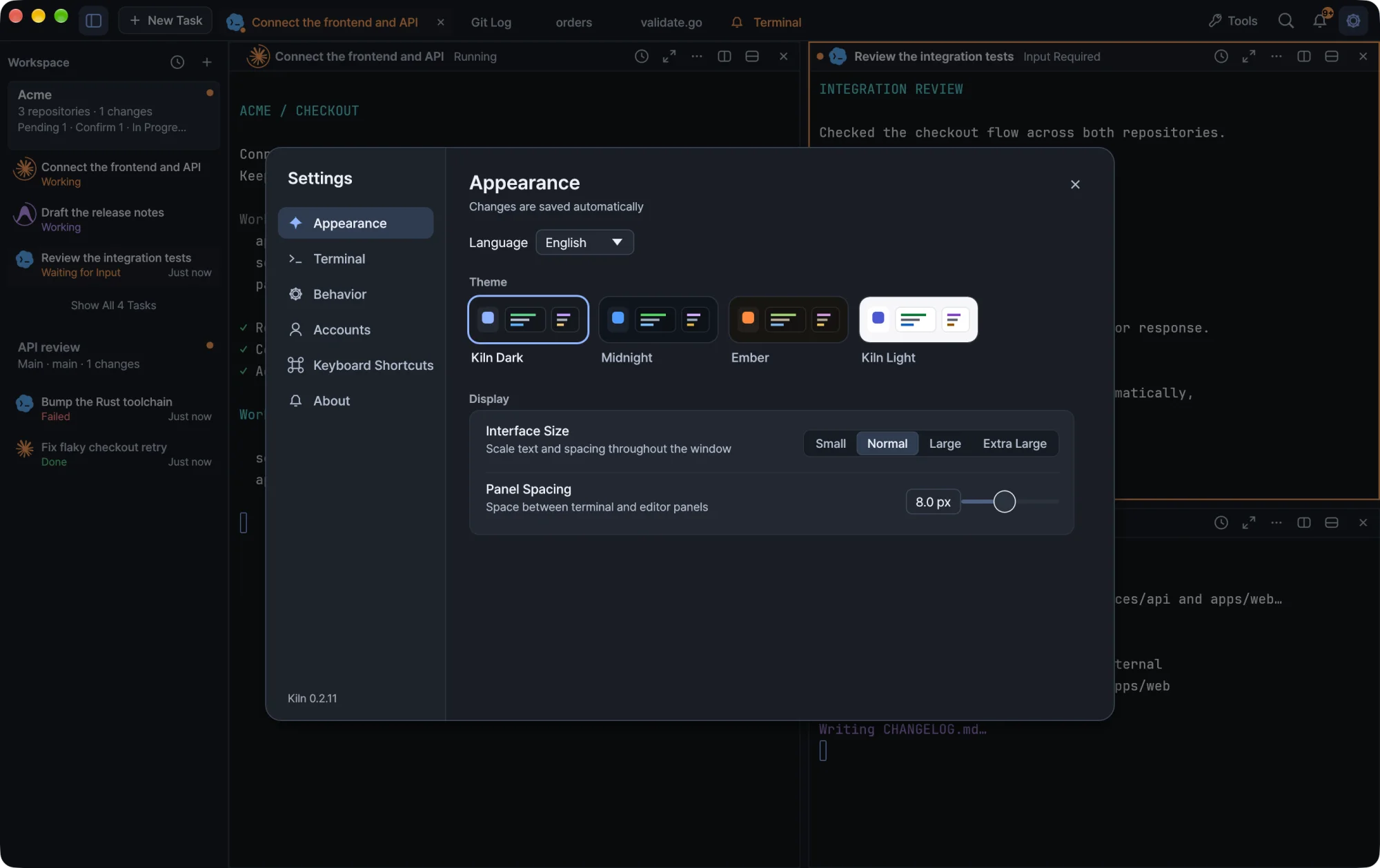
Open Settings → Appearance → Language and choose English, Korean, Japanese or Simplified Chinese. The change applies immediately and is saved for the next launch.
Only Kiln's own interface changes. Terminal output, filenames, code, commit messages and agent requests keep their original contents. Installations from earlier versions stay in Korean until you choose a language.
Next steps
- Workspaces and tasks to organize your folders and tasks.
- Agents to start your first agent task.
- Terminal to set up shell integration and activity reporting.